You're presented with traffic capture files which contain downloaded files. You need to examine those files, analyze them and extract the downloaded files from the PCAP file.
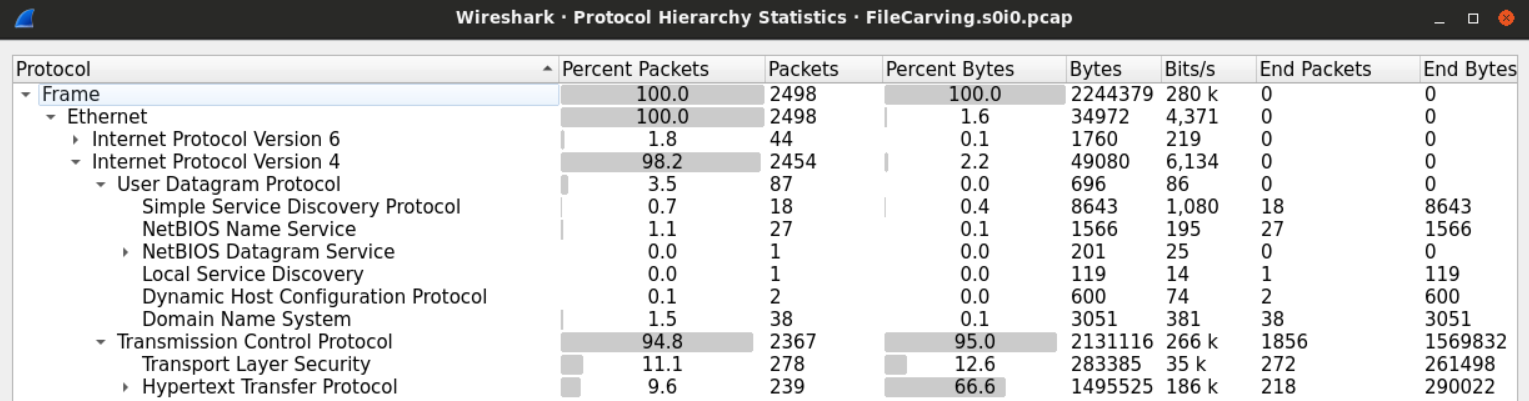
As usual, start by taking a look at the file's statistics is always a good place to begin.
From the protocol hierarchy figure, it seems that HTTP is the protocol which the file we're looking for was downloaded through.
It may be a good idea to look at the HTTP requests made.
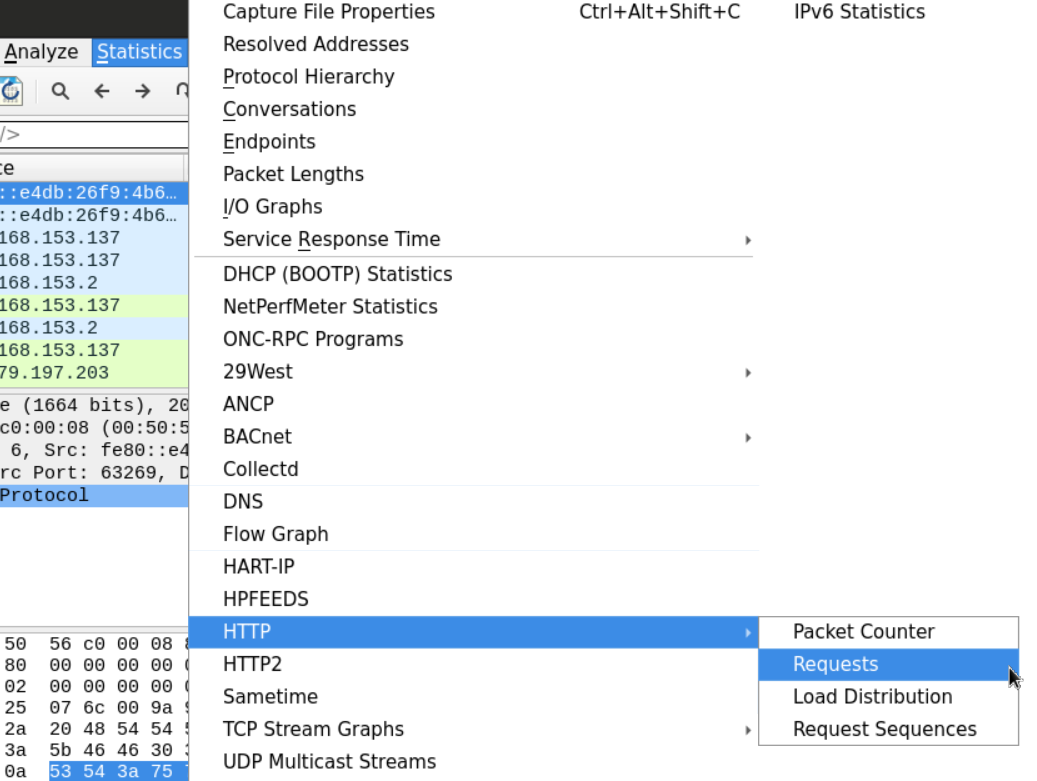
Examining the requests made can help us know what type of file we're looking for.
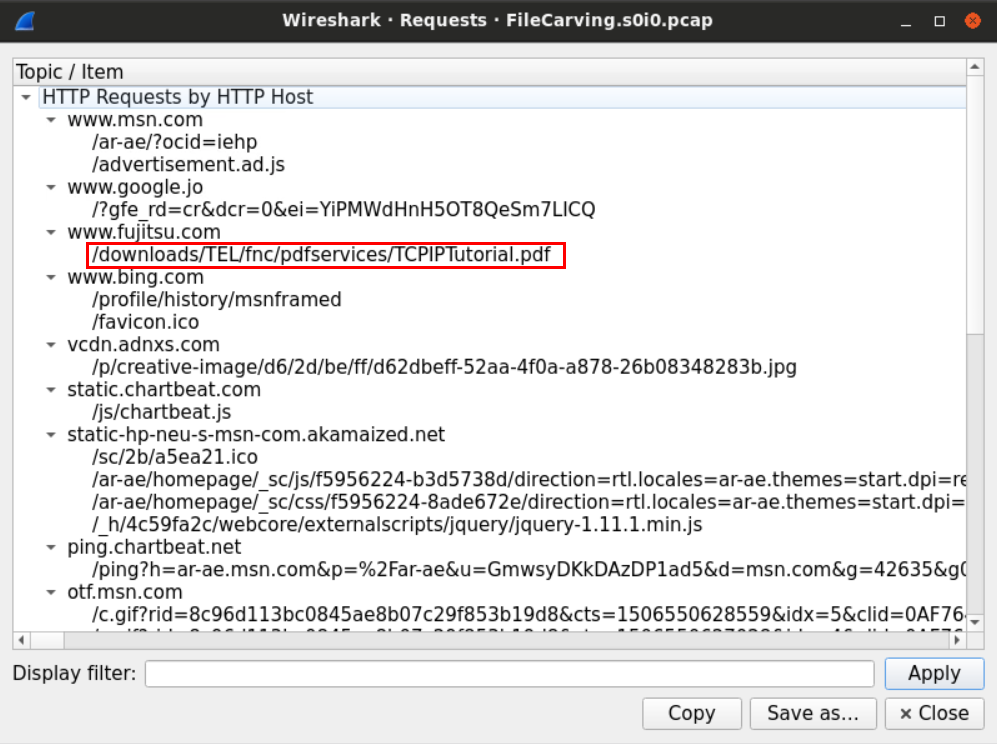
Now we know that it is a PDF file.
To extract the downloaded file, we need to find the network streams which contain that file and extract those bytes into an independent file to open later.
One way to look for the file is using its magic number. Recall how each format has a unique header that can be used to identify that file.
We know from the previous example that the user has downloaded a PDF file from the BBC website using HTTP protocol.
We can use that knowledge to our advantage and look for the PDF signature within the PDF HTTP stream. Using the filter http contains "PDF".
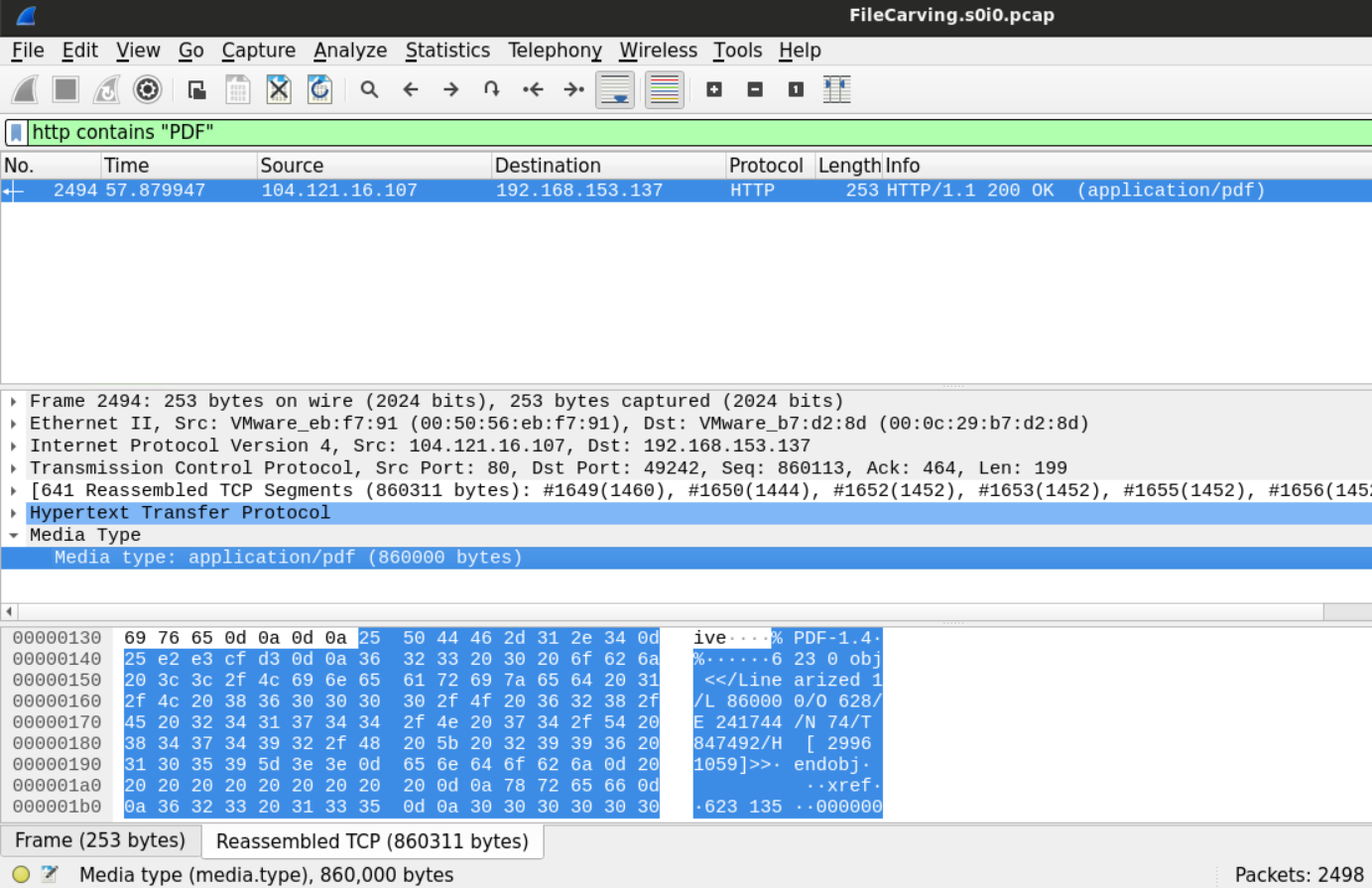
After we've found the file and highlighted its bytes, we can use the Wireshark extraction feature to dump those bytes into a separate unique file.
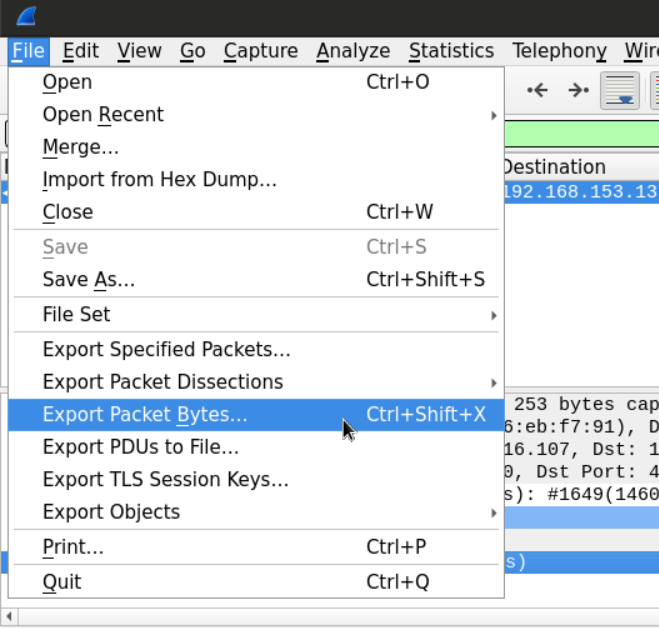
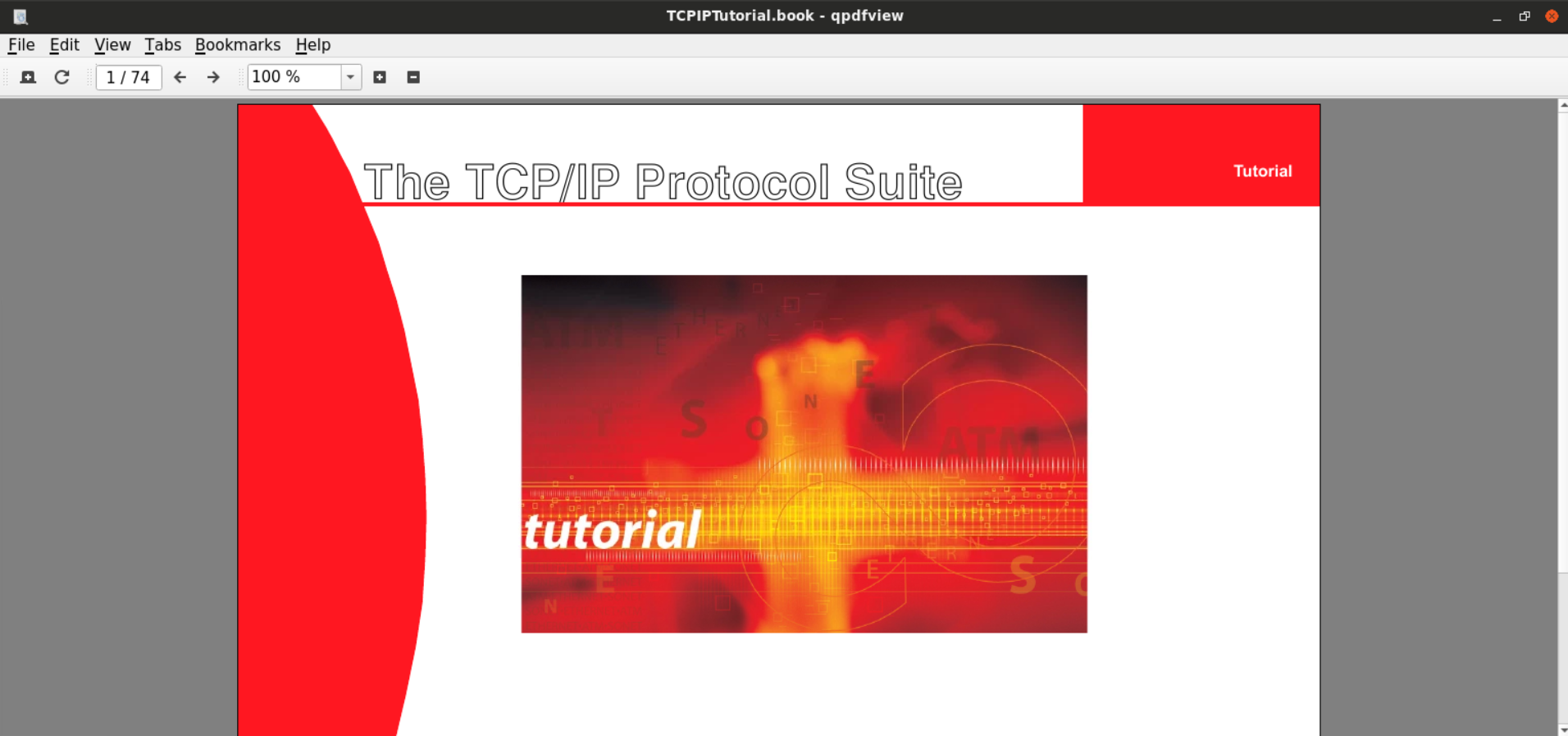
The new file will be saved as a .bin file, all we need to do is to change the extension and open the file with a PDF reader.
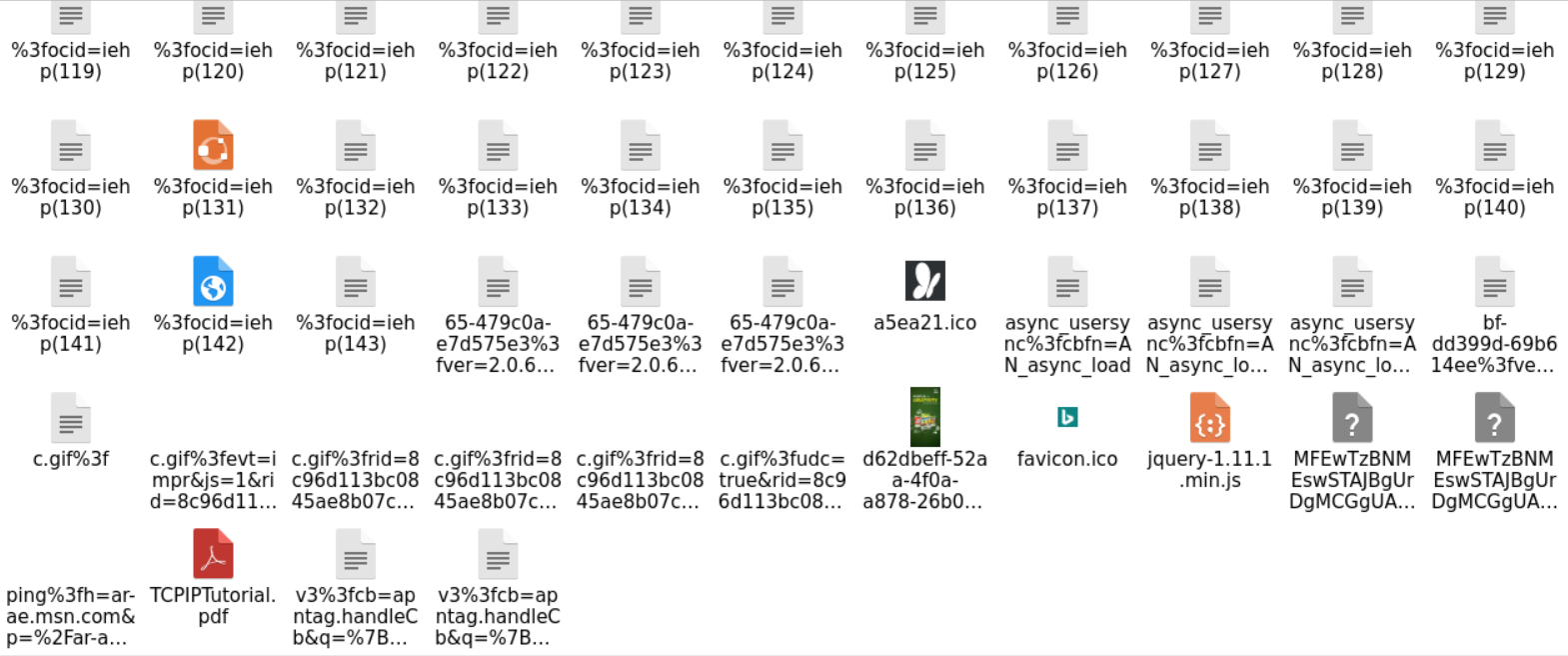
Another way to do this would be to export all the objects downloaded through HTTP.
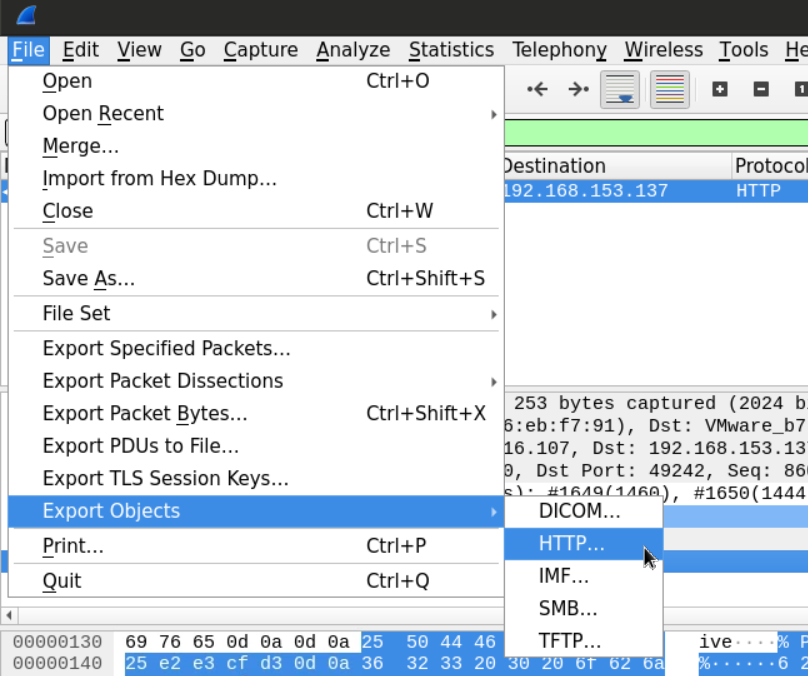
This will give us the list of the objects which we can pick from
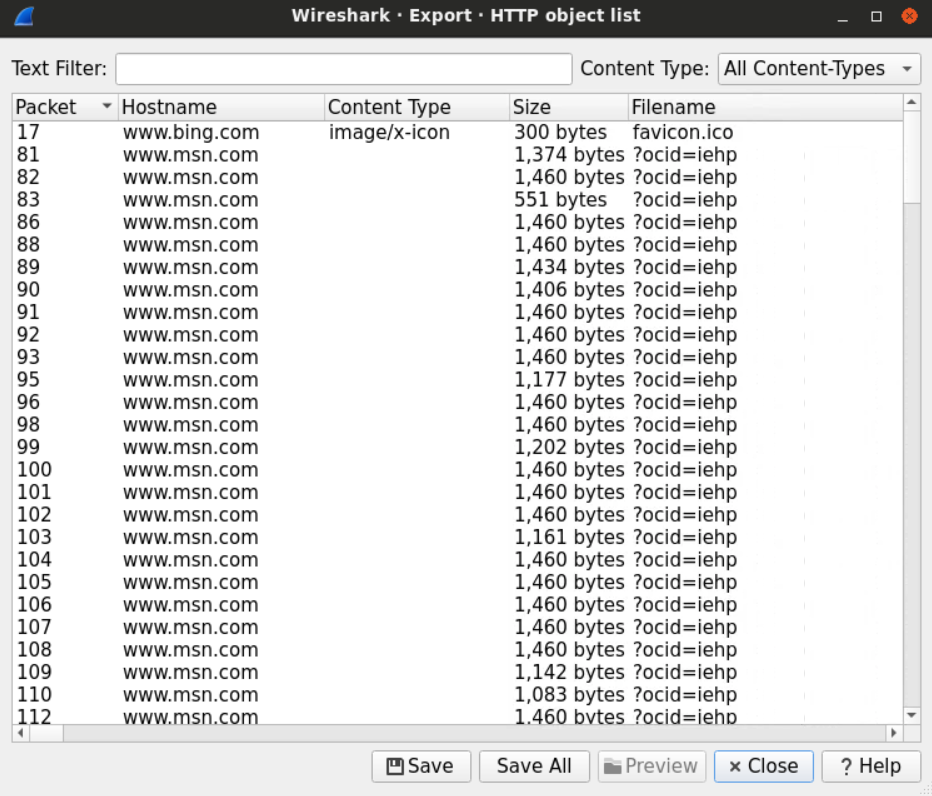
After sorting the files at the destination folder, we can examine the extensions and open the files that look interesting to us.
First, let's load the PCAP file located at Desktop/Module7/Lab20/file2.pcap on Wireshark.
The protocol hierarchy for this cap file looks a little different than the other files we examined.

The amount of ICMP traffic within the file is more than normal.
Things get even weirder when we examine the first ICMP packet in the file.
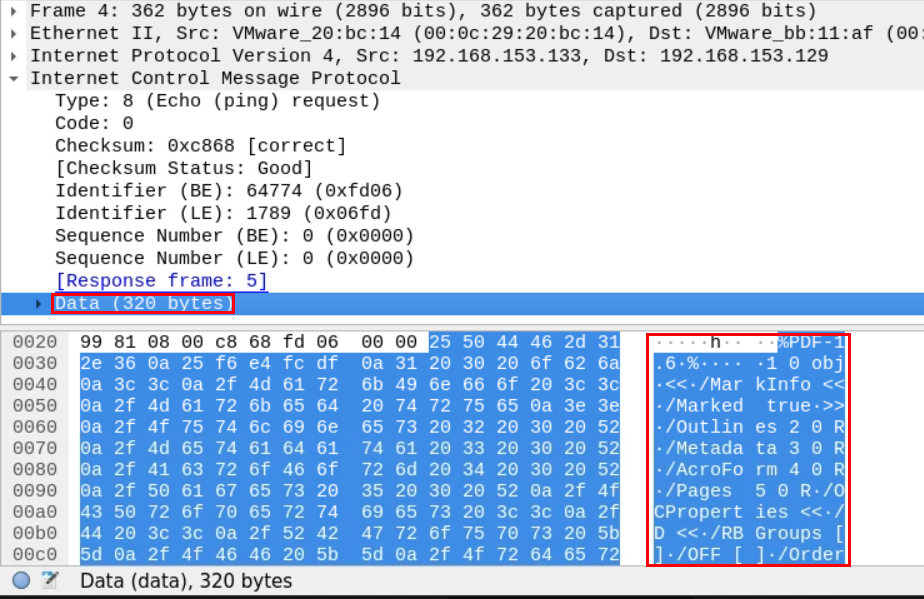
Unlike the normal ICMP ping packets, these seem bigger.
Upon closer inspection of the first ICMP packet, we see that the Data Section is much larger than usual. Instead of the expected small ping request/reply, we find a %PDF-1.5 string, which indicates a PDF file may be embedded within the ICMP packets.
Extract ICMP Payloads Using TShark
We use TShark to extract the raw ICMP data from the PCAP file.
Run the following command in the terminal:
tshark -r Desktop/Module7/Lab20/file2.pcap -Y "icmp" -T fields -e data > icmp_data.txt
This extracts all ICMP packet payloads into a text file (icmp_data.txt), but the data is in hex format. We need to convert it into binary.
Convert Hex Data to Binary
xxd -r -p icmp_data.txt icmp_extracted.bin
file icmp_extracted.bin
Now, icmp_extracted.bin contains all the raw ICMP payloads in binary form.
We have successfully extracted a hidden PDF file from ICMP traffic inside the PCAP file! Now, you can read, analyze, or investigate it further.
In this analysis, we discovered that the ICMP traffic contained embedded files, including a PDF. By extracting and analyzing the payload, we were able to recover the hidden files. This technique can be used to detect covert exfiltration of data in real-world forensic investigations.